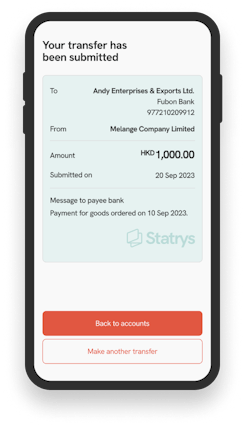
How do I make a payment from the Mobile App?
Making a payment with the Statrys Mobile App is straightforward and offers flexible options for managing payees. Whether you prefer to set up a payee in advance or add one during the transfer process, the steps below will guide you:
1. Launch the Statrys Mobile App and log in.
2. Click on the "Transfer" tab.
3. The currency of your choice and the amount. The app displays the Statrys rate, the live rate.
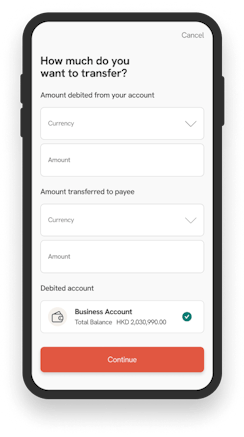
4. Choose the Transfer date
5. Click continue, select your Payee, or Add New Payee.

6. Select transfer fee - You can choose to absorb all charges or partially.
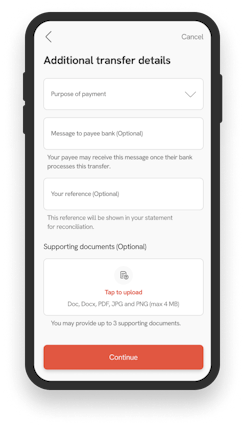
7. You can enter additional details and add a document if needed, then click continue.
8. Review the transfer summary. Confirm your transfer by clicking "Submit Now" to make the transfer immediately or "Confirm Later" for approval at a later date. Enter the 6-digit code when prompted.
9. The payment is made. Note that your payment amount and transfer fees are debited separately from your account for complete transparency.